What Is a Keyboard? Types, Parts, Functions and Uses
 Mian Bilal Ch
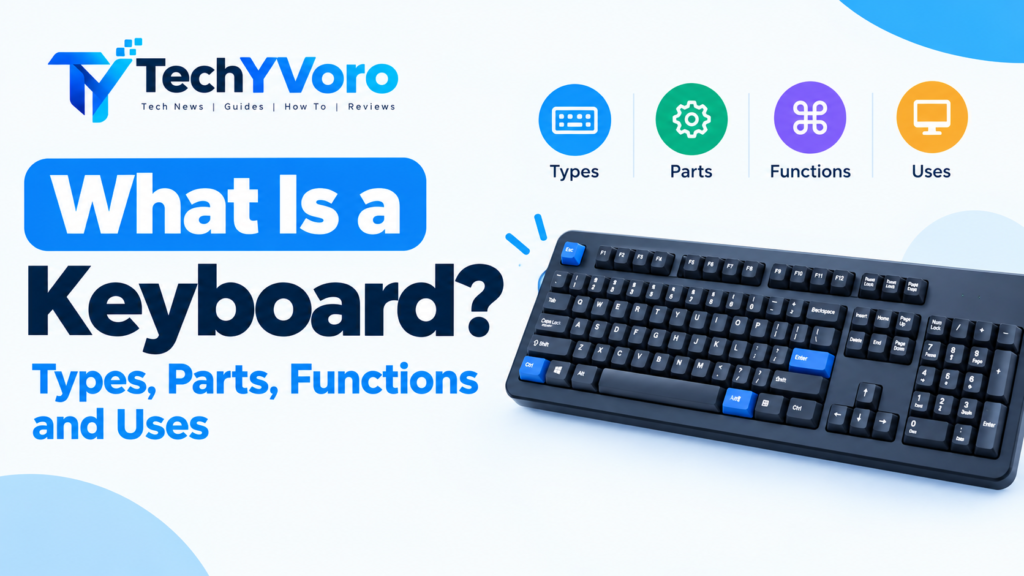
A keyboard is an input device that lets you enter text, numbers, symbols, and commands into a computer or another compatible device. It contains different groups of keys, including letters, numbers, function keys, navigation keys, and special keys that help you perform everyday tasks.
Computer keyboards are used for writing documents, browsing the internet, programming, gaming, communicating online, and controlling software. Depending on their design, they may connect through a USB cable, Bluetooth, or a wireless receiver.
Understanding the parts, types, and functions of a keyboard makes it easier to use a computer efficiently and choose the right keyboard for your needs.
What Is a Keyboard?
A computer keyboard is a hardware input device that allows users to communicate with a computer by pressing keys. Each key or key combination can produce text, trigger a command, move through an interface, or perform another supported action.
For example, pressing the letter A in a text editor enters that character. Pressing Ctrl + C copies selected content in many applications, while pressing the arrow keys moves the cursor or selection.
A keyboard is an input device because it sends information to a computer. A monitor, by contrast, is an output device because it displays information from the computer.
Keyboards are available in different sizes and designs. Some include a numeric keypad and a complete set of navigation keys, while compact models remove certain keys to save desk space.
What Does a Keyboard Do?
The main function of a keyboard is to help users enter information and control computer applications. Its exact functions depend on the device, operating system, active application, and available keys.
Common keyboard functions include:
- Text entry: Type letters, words, sentences, and paragraphs.
- Number entry: Enter numbers for calculations, spreadsheets, and forms.
- Command execution: Use keyboard shortcuts to perform actions quickly.
- Navigation: Move between fields, menus, documents, and interface elements.
- Editing: Delete, select, copy, paste, and modify text.
- Programming: Enter source code, commands, symbols, and shortcuts in development tools.
- Gaming: Control characters, movement, actions, and other game functions.
- Media control: Adjust volume or control playback when supported by the keyboard and software.
For example, an office worker might use a keyboard to prepare a report, enter figures into a spreadsheet, and switch between applications. A student might use it to take notes, complete assignments, and search for information online.
How Does a Computer Keyboard Work?
A keyboard detects a key press and communicates that input to a connected device. The computer processes the input and determines what action should happen.
The precise mechanism depends on the keyboard’s design and the operating system receiving the input.
1. You Press a Key
When you press a key, its switch or contact mechanism detects the action. Mechanical keyboards typically use individual mechanical switches, while membrane keyboards use layers and conductive contacts.
2. The Keyboard Generates Input Signals
The keyboard’s internal electronics identify the key event and send information to the connected device. Depending on the hardware and interface, this information is encoded according to the relevant input protocol.
3. The Computer Interprets the Input
The operating system and active keyboard layout help interpret the key event. The application that has keyboard focus can then respond to it.
For example, pressing a letter key while a document is active may insert a character. Pressing a supported shortcut may copy text or open a command.
A physical key does not always correspond to one fixed character. The active layout, modifier keys such as Shift, and input method can change the result. Microsoft’s documentation explains how keyboard scan codes and layouts are processed by Windows.
What Are the Main Parts of a Keyboard?
Most standard computer keyboards contain several groups of keys. Their arrangement and availability vary between full-size, compact, laptop, and specialized keyboards.
1. Alphanumeric Keys
Alphanumeric keys include letters, numbers, and many punctuation marks and symbols. They form the main typing area of the keyboard.
Examples include A–Z, the number keys, commas, periods, and other character keys.
Main function: Enter words, numbers, symbols, and other text.
2. Function Keys
Function keys are usually labeled F1 through F12 on standard desktop keyboards. Their actions depend on the operating system, application, and keyboard configuration.
Examples include:
- F1 may open Help in some applications.
- F2 may rename a selected file in Windows File Explorer.
- F5 commonly refreshes a page in many browsers.
- F11 commonly toggles full-screen mode in many desktop browsers.
These are common examples, not universal rules. Laptop keyboards may require an additional Fn key to access certain functions.
Main function: Provide shortcuts for application and system actions.
3. Control and Modifier Keys
Control and modifier keys change how other keys behave or trigger commands when pressed in combinations.
Common examples include:
- Ctrl: Used in many shortcuts, such as Ctrl + C.
- Alt: Used for application and system commands.
- Shift: Types uppercase letters or accesses alternate symbols when supported.
- Windows key: Opens Start or participates in Windows shortcuts.
- Esc: Often cancels an operation or closes a menu.
- Fn: Accesses additional functions on many laptops and compact keyboards.
Main function: Control actions, modify key behavior, and speed up common tasks.
4. Navigation and Editing Keys
Navigation keys help users move through documents, pages, menus, and text.
| Key | Common function |
|---|---|
| Arrow keys | Move a cursor or selection |
| Home | Move to the beginning of a line or another defined starting position |
| End | Move to the end of a line or another defined ending position |
| Page Up | Move upward through a page or view |
| Page Down | Move downward through a page or view |
| Insert | Toggle insertion or overwrite behavior in supported applications |
| Delete | Delete selected content or the character ahead of the cursor |
| Backspace | Delete the character before the cursor in text fields |
The behavior of some keys varies by application and context.
5. Numeric Keypad
The numeric keypad is the separate group of number and arithmetic keys found on many full-size keyboards. It usually sits on the right side.
It commonly includes digits 0–9, decimal entry, arithmetic operators, and an Enter key. Some keys have alternative navigation functions when Num Lock is off.
Main function: Enter numbers and perform frequent numeric operations efficiently.
A numeric keypad is particularly useful for spreadsheets, accounting, data entry, and calculations.
6. Special and Multimedia Keys
Special keys provide additional functions beyond ordinary text entry.
Depending on the keyboard, they may include:
- Print Screen or screenshot controls
- Volume up, volume down, and mute
- Play, pause, and track controls
- Keyboard backlighting
- Dedicated calculator or media buttons
Not every keyboard includes these controls. Some require operating-system support or compatible software.
What Are the Different Types of Keyboards?
Keyboard types are easier to understand when divided into three categories: how the keys work, how the keyboard connects, and what it is designed to do.
Mechanical Keyboard
A mechanical keyboard uses individual mechanical switches beneath its keys. Switches differ in their actuation force, travel, feedback, and sound.
Advantages:
- Different switch options for different typing preferences.
- Many models support replaceable keycaps and other customization.
- Some models offer durable construction and programmable features.
Limitations:
- Certain models are relatively loud.
- Some are heavier or more expensive than basic alternatives.
- The typing feel depends on the switch and keyboard design.
Best suited for: Users who prefer a defined typing feel, enthusiasts, programmers, and some gamers.
Membrane Keyboard
A membrane keyboard uses flexible membrane layers and electrical contacts to register key presses. Many affordable office keyboards and basic computer keyboards use this design.
Advantages:
- Often affordable.
- Commonly lightweight and simple.
- Available in many everyday office and home designs.
Limitations:
- The typing feel varies by model and may be less distinct than some mechanical keyboards.
- Repair and customization options depend on the design.
Best suited for: Everyday typing, schoolwork, general office tasks, and budget-conscious users.
Wired Keyboard
A wired keyboard connects directly to a computer, commonly through USB. Older devices may use other interfaces.
Advantages:
- No separate keyboard battery is required for a typical USB-powered model.
- Setup is often straightforward.
- No wireless pairing is necessary.
Limitations:
- The cable occupies space and limits placement.
- Cable length and port availability can affect convenience.
Best suited for: Desktop computers, office setups, and users who prefer a direct connection.
Wireless Keyboard
A wireless keyboard communicates through a wireless connection, commonly Bluetooth or a dedicated USB receiver.
Advantages:
- Fewer cables on the desk.
- More flexible placement.
- Convenient for compatible laptops, tablets, and desktop setups.
Limitations:
- Many models require batteries or recharging.
- Some receiver-based keyboards need an available USB port.
- Pairing, compatibility, or wireless interference can occasionally cause problems.
Best suited for: Minimal desk setups, presentations, compatible tablets, and users who value portability.
Ergonomic Keyboard
An ergonomic keyboard is designed to support a more comfortable typing position. Some models use split layouts, angled sections, curved key arrangements, or alternative shapes.
Advantages:
- May help some users adopt a more comfortable wrist, hand, or shoulder position.
- Different designs accommodate different working preferences.
Limitations:
- Takes time to learn in some cases.
- Fit and comfort vary between individuals.
- A particular design does not guarantee prevention of pain or injury.
Best suited for: People seeking a more comfortable typing setup, particularly during extended computer use.
Gaming Keyboard
A gaming keyboard is designed with features intended to support computer gaming. Depending on the model, these may include programmable keys, customizable lighting, extra controls, or support for registering multiple simultaneous key presses.
Advantages:
- May offer convenient game-specific controls.
- Some models allow macros and customization.
- Certain designs provide feedback preferred by gamers.
Limitations:
- Extra features may be unnecessary for ordinary office work.
- Pricing varies widely.
- Lighting and software features do not automatically improve gaming performance.
Best suited for: PC gaming and users who want customizable controls.
Virtual or On-Screen Keyboard
A virtual keyboard displays keys on a screen instead of requiring a separate physical keyboard. It is common on smartphones and tablets and is also available through accessibility features on many computer operating systems.
Advantages:
- Useful on touchscreen devices.
- Can support alternative input methods and accessibility needs.
- Does not require a separate physical keyboard for basic text entry.
Limitations:
- Uses screen space.
- May be less convenient for sustained typing.
- Typing speed and accuracy depend on the device and user.
Best suited for: Touchscreen devices, temporary text entry, and certain accessibility situations.
Mechanical vs. Membrane Keyboards
Mechanical and membrane keyboards differ mainly in their key mechanisms and typing feel. Neither is automatically better for every user.
| Feature | Mechanical keyboard | Membrane keyboard |
|---|---|---|
| Key mechanism | Individual mechanical switches | Membrane layers and contacts |
| Typing feel | Depends on switch type | Depends on membrane design |
| Sound | Can range from quiet to loud | Often quieter, but varies |
| Price | Wide range; many models cost more | Often budget-friendly |
| Customization | Available on many models | Usually more limited |
| Common uses | Gaming, typing, general computing | Office work, schoolwork, general computing |
Which should you choose? Choose a mechanical keyboard if you prefer its available switch options and typing feedback. Choose a membrane keyboard if you want a straightforward, often affordable option for everyday work. Compare the actual model, layout, comfort, noise, and price before buying.
Different Keyboard Layouts
A keyboard layout determines how letters, symbols, and other inputs are arranged or produced. The physical arrangement and the software-selected input layout can both affect what appears when you press a key.
QWERTY Layout
QWERTY is a widely used layout named after the first six letters in its top letter row. It is common on English-language keyboards, although regional variations exist.
AZERTY Layout
AZERTY is used in some French-language keyboard configurations. Its letter arrangement differs from QWERTY, and the placement of punctuation and other symbols can also vary.
QWERTZ Layout
QWERTZ is used in several Central European keyboard configurations. One noticeable difference from common English QWERTY layouts is the placement of Y and Z.
Dvorak Layout
Dvorak is an alternative layout designed to arrange frequently used letters differently from QWERTY. Some users prefer it, but switching layouts requires practice, and results vary by individual.
A keyboard’s physical key labels and the operating system’s active input layout do not always match. If the wrong symbols appear while typing, check the selected language and keyboard layout in your operating system.
Common Keyboard Shortcuts and Their Functions
Keyboard shortcuts combine keys to perform actions without selecting every command with a mouse. The following examples are common in Windows applications, but shortcuts can differ by program and operating system.
| Shortcut | Common function |
|---|---|
| Ctrl + C | Copy selected content |
| Ctrl + V | Paste copied or cut content |
| Ctrl + X | Cut selected content |
| Ctrl + Z | Undo the previous action |
| Ctrl + A | Select all relevant content |
| Ctrl + S | Save the current file in supported applications |
| Ctrl + P | Open the print dialog in supported applications |
| Ctrl + F | Find text or content |
| Alt + Tab | Switch between open applications in Windows |
| Windows + E | Open File Explorer in Windows |
For example, when editing a document, you can select a sentence, press Ctrl + C to copy it, move the cursor to another location, and press Ctrl + V to paste it.
Learn a few shortcuts you use regularly before trying to memorize a long list. For exact behavior, consult the documentation for your operating system or application.
What Are the Uses of a Keyboard?
A keyboard is useful in many everyday computing activities.
1. Typing Documents
Students, teachers, writers, and office workers use keyboards to prepare reports, assignments, letters, notes, and other documents.
2. Programming and Coding
Developers use keyboards to enter code, write commands, navigate editors, and access development tools. A suitable keyboard layout and comfortable typing setup can make frequent text entry more convenient.
3. Office Work and Data Entry
Keyboards help users fill out forms, update records, create spreadsheets, enter figures, and communicate through workplace applications. A numeric keypad can be particularly useful for tasks involving many numbers.
4. Gaming
PC gamers use keyboard keys to control movement, trigger actions, communicate, and activate shortcuts. The best arrangement depends on the game and the player’s preferences.
5. Online Communication
Keyboards support emails, chat messages, social media posts, online forms, and video-call conversations.
6. Accessibility and Navigation
Keyboard navigation can help users operate software without relying entirely on a mouse. Tab, arrow keys, Enter, and supported shortcuts are useful for moving between controls. Specific accessibility needs may be better served by alternative layouts, on-screen keyboards, or specialized input devices.
Advantages and Disadvantages of a Keyboard
Advantages
- Efficient text entry: Physical keyboards are useful for writing long documents and entering detailed information.
- Convenient shortcuts: Key combinations reduce the need to navigate menus for common actions.
- Precise control: Many applications support keyboard navigation and command entry.
- Versatility: Keyboards support education, office work, coding, communication, and gaming.
- Multiple options: Users can choose from different layouts, sizes, connection methods, and key mechanisms.
Disadvantages
- Learning required: Beginners may need time to become familiar with the layout and shortcuts.
- Physical discomfort: Prolonged typing or a poorly arranged workstation may contribute to discomfort.
- Hardware faults: Keys, cables, batteries, switches, or wireless connections can fail.
- Cleaning needs: Dust, crumbs, and liquid spills can affect some keyboards.
- Space requirements: Full-size models may occupy more desk space than compact alternatives.
For more comfortable use, keep the keyboard at a suitable height, avoid excessive wrist bending, take regular breaks, and choose a layout that suits your needs. If typing causes persistent pain or numbness, seek appropriate professional guidance rather than assuming a different keyboard alone will solve the problem.
Common Keyboard Problems and Basic Solutions
A keyboard may stop responding or produce unexpected characters for several reasons. Start with simple checks before assuming the hardware is damaged.
Keyboard Is Not Typing
- Check that the keyboard is powered on, if it has a power switch.
- For a wired model, reconnect the cable and try another compatible USB port.
- For a wireless model, check its battery or charge level and confirm the connection.
- Restart the application and check whether the problem occurs in other applications.
- Restart the computer if the keyboard remains unresponsive.
Wrong Characters Appear
Check the active language and keyboard layout. A different layout can change the characters produced by the same physical key. On Windows, the Windows key + Space shortcut can cycle through installed input layouts.
Some Keys Do Not Work
Check for debris, stuck keys, or accidental changes to keyboard settings. Follow the manufacturer’s cleaning instructions and disconnect or power off the device before cleaning it. Avoid pouring liquids or spraying cleaning products directly onto the keyboard.
If the problem persists, test the keyboard on another compatible device where possible. A persistent fault may require repair or replacement.
Frequently Asked Questions
What is a keyboard in a computer?
A computer keyboard is an input device used to enter letters, numbers, symbols, and commands. It allows users to type documents, navigate software, use shortcuts, and interact with a computer.
What are the main parts of a keyboard?
The main groups commonly include alphanumeric keys, function keys, control and modifier keys, navigation and editing keys, and special keys. Full-size models may also include a numeric keypad.
How many keys are on a standard keyboard?
There is no single key count for every standard keyboard. The number depends on the layout, regional configuration, physical size, and included special keys. Full-size desktop keyboards commonly have around 104 or 105 keys, while compact and laptop models may have fewer.
Is a keyboard an input or output device?
A keyboard is an input device because it sends key presses and other input to a computer. A monitor is an output device because it displays information from the computer.
What is the difference between a wired and wireless keyboard?
A wired keyboard connects through a cable, commonly USB. A wireless keyboard communicates through a supported wireless connection, such as Bluetooth or a USB receiver. Wired models typically do not require a separate keyboard battery when powered through USB, while many wireless models require batteries or charging.
Which keyboard is better for beginners?
A standard, comfortable keyboard with a familiar layout is a practical starting point for most beginners. A basic membrane keyboard is often sufficient for everyday tasks, but the best choice depends on budget, typing preferences, device compatibility, and intended use.
What should I do if my keyboard stops working?
Check its power, cable or wireless connection, battery, and selected keyboard layout. Test it in another application or on another compatible device if possible. If only certain keys fail, inspect them carefully and follow the manufacturer’s cleaning guidance.
Conclusion
A keyboard is an essential computer input device used for typing, entering data, navigating applications, and performing commands. Its main parts serve different purposes, while its types vary by mechanism, connectivity, layout, and intended use.
Understanding these differences helps you use a keyboard more effectively and select one that fits your everyday tasks. Start by learning the key groups and a few useful shortcuts, then explore more advanced features as your needs grow.
For more practical technology explanations and tutorials, explore the guides available on TechyVoro.

One Comment