Best Internet Setup for Gaming: Reduce Ping & Lag
 Mian Bilal Ch
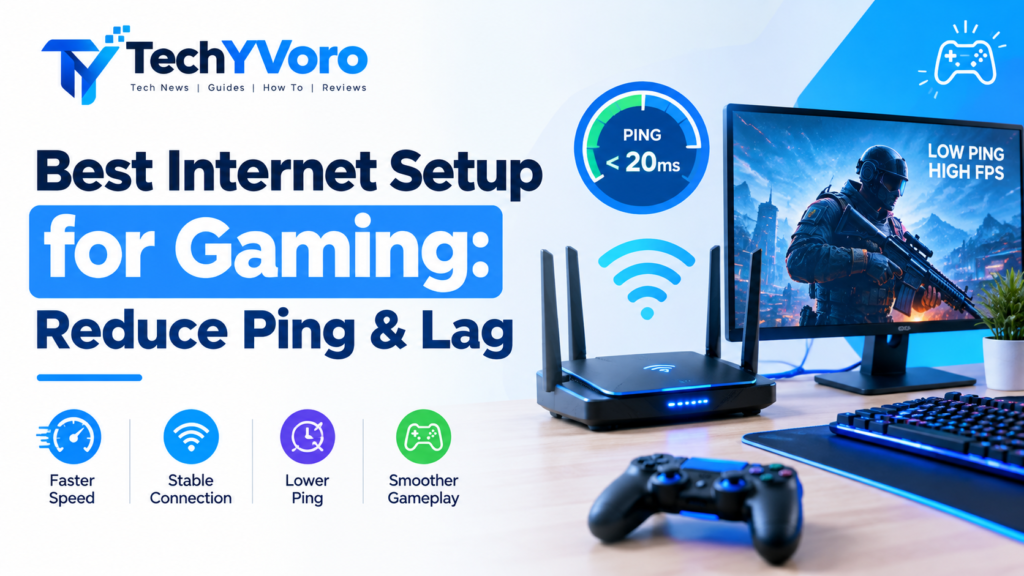
The best internet setup for gaming combines a stable internet connection, low latency, minimal packet loss, and a properly configured home network. For most gamers, connecting a PC or console directly to the router with an Ethernet cable is a good starting point. If you use Wi-Fi, place your router in a central, unobstructed location and connect to a suitable Wi-Fi band. You should also limit unnecessary downloads, test your connection under load, and optimize router settings when congestion is the problem. Before upgrading your internet plan or buying a gaming router, identify what is actually causing your lag.
What Is the Best Internet Setup for Gaming?
A good gaming network prioritizes consistent performance over download speed alone. A fast connection can still produce frustrating lag if it suffers from congestion, unstable latency, packet loss, or poor routing to the game server.
Start with this setup:
- Connect your gaming PC or console directly to your router using Ethernet whenever practical.
- Choose an internet plan with enough bandwidth for gaming and other household activities.
- Position your router away from obstructions and sources of interference.
- Reduce unnecessary downloads, uploads, and background network activity while playing.
- Test ping, jitter, packet loss, and latency under load.
- Configure QoS or Smart Queue Management (SQM) if network congestion is causing latency spikes.
- Choose the appropriate game-server region when the game provides that option.
Cloudflare’s internet-quality documentation also emphasizes that gaming performance depends on several measurements, including latency, jitter, packet loss, and loaded latency—not just upload and download speeds. Cloudflare Speed docs
The ideal setup depends on your equipment, ISP, household usage, and the games you play. A casual gamer with a reliable connection may not need expensive networking equipment, while a competitive player may benefit more from a stable wired connection and careful latency testing.
For more insights into social media tools and embedding content, read our guide to Social Media Stuff EmbedTree to explore its features and setup.
What Internet Speed Do You Need for Gaming?
There is no single internet speed requirement for every game. Traditional online multiplayer games generally need less bandwidth during gameplay than large downloads, high-resolution streaming, or cloud gaming.
The right plan should provide sufficient bandwidth for your gaming device and the other people and devices using the connection simultaneously.
Download speed vs. upload speed
Download speed determines how quickly data reaches your device. It matters when downloading games, installing updates, receiving game data, and using online services.
Upload speed determines how quickly your device sends data. It matters for transmitting gameplay information, voice chat, live streaming, and other activities that send data to the internet.
Neither number tells the whole story. A connection with high download speeds may still perform poorly in a competitive game if latency spikes whenever someone uploads a large file.
Internet speed requirements for different gaming scenarios
The following table is a practical planning guide, not a universal minimum or a guarantee of good performance.
| Gaming scenario | What to prioritize |
|---|---|
| Standard online multiplayer | Stable latency, minimal packet loss, and sufficient bandwidth |
| Competitive shooters and fighting games | Consistent latency, low jitter, and a reliable connection |
| Gaming while others stream or browse | Enough shared bandwidth and good congestion management |
| Large game downloads and updates | Higher download bandwidth to reduce waiting time |
| Cloud gaming | The provider’s recommended bandwidth, supported resolution, and stable latency |
| Gaming while live streaming | Adequate upload capacity and sufficient headroom for other devices |
For ordinary online gameplay, a very high download speed is not automatically necessary. Your requirements increase when multiple people share the network, stream video, download large files, or use cloud gaming.
Before upgrading, check the recommended requirements for your particular game or cloud-gaming service. Also consider the number of devices in your home and the amount of simultaneous activity.
How many Mbps is enough for gaming?
A 100 Mbps connection can be sufficient for many traditional online games, provided the network is stable and other household activities do not overwhelm the available bandwidth. However, that does not make 100 Mbps a universal recommendation for every household.
A household with multiple users downloading files, streaming video, and gaming simultaneously may benefit from more bandwidth. A gamer using cloud gaming should follow the relevant service’s requirements rather than relying on general multiplayer advice.
The important distinction is that more bandwidth helps when bandwidth is the bottleneck; it does not automatically shorten the physical distance to a game server or correct poor routing.
Ethernet vs. Wi-Fi for Gaming
Ethernet is generally the best starting point when you want a stable internet connection for gaming. It avoids local wireless interference and often reduces connection variability between your device and router.
Wi-Fi remains useful when running a cable is impractical. A well-positioned router and a suitable wireless connection can provide a good gaming experience, depending on the environment.
Comparison based on general networking principles; individual results depend on equipment, signal conditions, and internet routing.
| Feature | Ethernet | Wi-Fi |
|---|---|---|
| Connection consistency | Usually more consistent | Can vary with signal and interference |
| Local latency variability | Generally lower | Can experience additional variability |
| Installation | Requires suitable cabling | Convenient without a cable |
| Mobility | Limited by cable reach | More flexible |
| Interference | Not affected by radio interference on the access link | Can be affected by interference and obstacles |
| Best use | Competitive gaming and stable desktop or console setups | Flexible setups where wiring is difficult |
RTINGS’ router research highlights Ethernet’s advantages and finds that router upgrades have limited impact on total gaming latency unless the router is addressing a specific problem, such as network congestion. RTINGS.com
How to set up Ethernet for gaming
Follow these steps:
- Connect one end of a compatible Ethernet cable to your PC or console.
- Connect the other end to a LAN port on your router.
- Confirm that your device recognizes the wired connection.
- Disable Wi-Fi on the gaming device if necessary to ensure you are testing the wired connection.
- Run a connection test and record the results.
- Play a game and compare its actual in-game ping with your previous connection.
A standard, undamaged Cat 5e or Cat 6 Ethernet cable is sufficient for many home gaming setups. Choose a cable that supports the speed of your network equipment; you do not need an expensive gaming-branded cable simply for lower ping.
If your router is far away, consider a properly installed Ethernet run or another suitable wired networking option. Powerline networking and mesh systems can help in some homes, but their performance varies with the building, electrical wiring, placement, and equipment.
To understand how technology has changed over time, explore our guide on the evolution of digital technology, including major trends, AI advancements, and modern innovations.
How to improve Wi-Fi for gaming
If you cannot use Ethernet, start with the following improvements:
- Place your router in an open, central location where practical.
- Avoid hiding it inside a cabinet or placing it behind large obstacles.
- Reduce the distance between your gaming device and router.
- Keep the router away from obvious sources of wireless interference.
- Test different supported Wi-Fi bands and router locations.
- Update router firmware using the manufacturer’s instructions.
- Avoid unnecessary network congestion while gaming.
Do not assume that changing every wireless setting will improve performance. Make one change at a time and test the results.
Should you use 2.4 GHz, 5 GHz, or 6 GHz Wi-Fi?
The best band depends on distance, obstacles, interference, and device compatibility.
| Wi-Fi band | Potential advantage | Main limitation |
|---|---|---|
| 2.4 GHz | Often provides better reach through obstacles | May face more congestion and interference |
| 5 GHz | Often offers a useful balance of speed and range | Signal can weaken with distance and obstacles |
| 6 GHz | Offers additional spectrum on compatible equipment | Shorter practical range in many environments and limited compatibility |
For gaming in the same room as the router, 5 GHz or 6 GHz may be worth testing if both the router and gaming device support the band. If the signal is weak, a 2.4 GHz connection may be more reliable in some environments.
There is no universally best band. Test the options available to your equipment and keep the one that produces the most stable results.
Best Router Settings for Low Ping and Less Lag
The best router configuration is one that maintains a reliable connection without introducing unnecessary congestion or instability. Router features differ, so use the manufacturer’s documentation instead of assuming every setting is available on every device.
1. Enable QoS or Smart Queue Management when appropriate
Quality of Service (QoS) allows a router to manage traffic according to configured priorities or rules. Smart Queue Management (SQM) is designed to manage queues and help control latency caused by excessive buffering.
These features can help when your connection becomes congested because several devices are uploading or downloading simultaneously.
For example, if someone in your home uploads a large file while you play an online game, your latency may rise even though the connection appears fast during an idle speed test.
Depending on the router, suitable QoS or SQM settings may help reduce this problem. They cannot guarantee lower ping in every situation, and configuration details vary by manufacturer.
2. Position your router properly
Router placement matters most when your gaming device uses Wi-Fi.
Try to place the router:
- In an open area rather than inside an enclosed cabinet.
- Away from large obstructions where possible.
- At a suitable height for coverage.
- Close enough to your gaming area to provide a reliable signal.
If your connection is already wired directly to the router, changing the router’s physical position may not meaningfully improve internet latency.
3. Keep router firmware updated
Router manufacturers sometimes release firmware updates that address stability issues, bugs, compatibility problems, and security vulnerabilities.
Check the manufacturer’s official instructions for your exact model. Back up important configuration settings if supported, and avoid interrupting the update process.
Firmware updates are good maintenance, but they should not be presented as a guaranteed ping-reduction technique.
4. Avoid unnecessary router changes
Do not change several settings at once or disable security features in pursuit of lower ping.
In particular:
- Do not disable firewall protections without a specific, well-understood reason.
- Do not enable port forwarding unless the game or manufacturer documents a need.
- Do not assume a particular DNS provider will improve in-game latency.
- Do not enable every gaming or prioritization feature without testing its effect.
Change one setting, record the result, and revert it if performance becomes worse.
Does a gaming router actually reduce ping?
A gaming router can help when its capabilities address a genuine network problem, such as congestion, poor wireless coverage, or insufficient queue management.
However, purchasing a gaming-branded router will not necessarily improve ping. It cannot remove the distance to a game server, guarantee better ISP routing, or fix a problem originating on the game server itself.
Before spending money, test your existing connection over Ethernet, compare idle and loaded latency, and identify whether your router is actually the bottleneck.
For more details, read our complete guide to information about Foxtpax software, including its claimed features, safety, and legitimacy.
How to Reduce Ping Without Upgrading Your Internet
If your connection is reasonably fast but online games still lag, try these steps before changing your internet plan.
Step 1: Test your connection before making changes
Record your download speed, upload speed, latency, jitter, and packet loss if your testing tool provides them.
Run a test when the network is relatively quiet, then repeat it while other devices are using the internet.
A large increase in latency under load may indicate congestion. Cloudflare’s internet-quality measurement documentation explains why testing latency alongside bandwidth and packet loss provides a more complete picture of connection quality. Cloudflare Speed docs
Step 2: Switch to Ethernet
If you are gaming over Wi-Fi, connect your PC or console directly to the router and compare the results.
If the connection becomes more stable, wireless interference or signal conditions may have contributed to the problem.
If nothing changes, the issue may lie elsewhere, including your ISP connection, internet routing, or game server.
Step 3: Stop unnecessary downloads and uploads
Pause large downloads, cloud backups, file transfers, and other bandwidth-heavy tasks when possible.
Pay particular attention to uploads. An upload can saturate the available upstream bandwidth and increase latency even when download speed appears healthy.
You do not need to disconnect every device in your home. Start by identifying activities that coincide with your lag spikes.
Step 4: Choose an appropriate game-server region
When a game lets you choose a server region, select one that offers a suitable connection from your location.
A geographically distant server will generally require data to travel farther, although actual routing also affects latency. A nearby server is not always the fastest if the network path is inefficient.
Compare the available regions using the game’s own ping indicator where possible.
Step 5: Check router congestion management
If your latency rises significantly whenever other people use the internet, investigate whether your router supports QoS or SQM.
Follow the manufacturer’s instructions and test the connection again under similar conditions. Keep the feature enabled only if the results and overall network behavior justify it.
Step 6: Retest before buying equipment
Repeat your original tests under comparable conditions. Compare both the measured results and the actual gameplay experience.
If wired and wireless connections both show similar problems, and the issue persists when the home network is quiet, contact your ISP or investigate the game server before buying a new router.
How to Fix High Ping, Packet Loss, and Lag Spikes
Different connection problems can produce similar symptoms. A structured diagnosis helps you avoid wasting time on fixes that do not address the cause.
| Symptom | Possible cause | What to try |
|---|---|---|
| High ping despite fast internet | Server distance, ISP routing, or congestion | Compare game regions and test at different times |
| Lag only on Wi-Fi | Weak signal or wireless interference | Test Ethernet and improve router placement |
| Ping spikes when someone downloads or streams | Network congestion or bufferbloat | Reduce competing traffic and investigate QoS/SQM |
| Packet loss in several games | Local network, ISP, or wider network-path issue | Test a wired connection and collect diagnostic results |
| Problems in only one game | Game server, game network, or game-specific issue | Check official service status and compare another game |
| Slow downloads but normal gameplay | Download bandwidth or service limitations | Check the download source and available bandwidth |
| Frequent disconnections | Router, cable, modem, Wi-Fi, or ISP instability | Check cables, device logs, and service status |
These are possible causes, not definitive diagnoses. The same symptom can have more than one explanation.
How to fix high ping when your internet is fast
First, distinguish local network latency from latency to the game server.
- Test the connection while no major downloads are running.
- Repeat the test using Ethernet.
- Compare the result with the ping displayed inside the game.
- Try a different supported server region.
- Repeat the test at a different time.
- If the issue persists, collect the results and contact your ISP or check the game’s official service information.
A speed test normally measures latency to its own test infrastructure. That value may differ substantially from the ping to a particular game server.
How to fix packet loss in online games
Packet loss occurs when data packets fail to reach their destination. In a game, it may appear as rubber-banding, delayed actions, missing updates, or sudden interruptions.
Try these steps:
- Test with Ethernet to eliminate the wireless link as a possible cause.
- Inspect the Ethernet cable and router connections.
- Restart network equipment if appropriate and permitted by your ISP.
- Check whether other applications or games experience the same issue.
- Use a supported network diagnostic tool, if available, to collect evidence.
- Contact your ISP if the issue persists across devices or services.
Be careful when interpreting packet-loss results from traceroute or ping tools. Some intermediate routers deprioritize diagnostic traffic without dropping ordinary forwarded traffic. Loss shown at one intermediate hop does not necessarily mean that game traffic is being lost.
What to do when your ping spikes during downloads
This pattern often suggests congestion, especially if the connection is heavily used at the same time.
Start by pausing large transfers and testing again. If the problem disappears, consider limiting background activity or investigating a router’s QoS/SQM capabilities.
If ping remains high with the home network idle, congestion within your household may not be the cause. Further investigation of the ISP connection and the game-server route may be needed.
How to Test Your Internet Connection for Gaming
A useful gaming internet test should measure more than the headline download-speed number.
What to measure
- Ping/latency: The round-trip time for a packet to reach a destination and return.
- Jitter: Variation in latency over time.
- Packet loss: The proportion of test packets that fail to arrive.
- Download speed: How quickly data can be received.
- Upload speed: How quickly data can be sent.
- Loaded latency: How latency changes while the connection handles additional traffic.
Cloudflare’s internet-quality test documentation covers these complementary measurements and their use in assessing gaming performance. Cloudflare Speed docs
A simple home-network testing procedure
- Establish a baseline. Run a reputable speed and latency test when the connection is relatively idle. Record the results.
- Test Ethernet. If you previously used Wi-Fi, repeat the test with a wired connection.
- Test under load. Repeat the measurement while another device performs a normal, bandwidth-intensive activity.
- Check actual gameplay. Record the ping shown by the game and note when lag occurs.
- Compare results. Look for repeatable differences between wired and wireless tests, idle and loaded tests, and different gaming sessions.
- Make one change at a time. Retest after each change so you can determine whether it helped.
You can start with Cloudflare’s connection-quality tools. Use the test results as diagnostic evidence, not as a guarantee of the performance you will experience on every game server.
Frequently Asked Questions
What is a good ping for online gaming?
Lower, stable ping is generally preferable, particularly in competitive games. The acceptable value depends on the game, server location, and your sensitivity to delay. Avoid treating one ping number as a universal pass-or-fail threshold.
Is 100 Mbps enough for gaming?
For many traditional online multiplayer games, 100 Mbps can provide sufficient bandwidth. Performance still depends on latency, packet loss, connection stability, and how much bandwidth other devices use. Cloud gaming and simultaneous household activity can have different requirements.
Does a gaming router reduce ping?
Not necessarily. A router may help when its features address congestion or wireless problems, but it cannot guarantee better ISP routing or eliminate distance-related latency. Test your existing network before upgrading.
Does changing DNS improve gaming ping?
Usually, changing DNS does not directly reduce the latency of ongoing gameplay once the game is communicating with its server. DNS can affect domain-name resolution and, in some cases, which service endpoint is selected, but the result depends on the game and its infrastructure. Do not assume a public DNS provider will automatically produce lower in-game ping.
Is Ethernet better than Wi-Fi for competitive gaming?
Ethernet is generally the more consistent option because it avoids wireless interference on the local connection. However, a poor ISP connection or distant game server can still cause high ping over Ethernet.
How can I reduce ping without upgrading my internet?
Try Ethernet, reduce unnecessary background traffic, optimize router placement, choose a suitable server region, and test latency under load. If the problem persists, investigate the ISP connection and the game’s server before buying new equipment.
Final Recommendations for a Stable Gaming Connection
The best internet setup for gaming does not necessarily require the fastest available plan or an expensive gaming router. It requires a stable connection and a clear understanding of what is causing poor performance.
Start with Ethernet if practical, choose a suitable internet plan, reduce avoidable congestion, and test your connection while idle and under load. Optimize Wi-Fi or router settings only when the evidence points to a local networking issue.
If high ping or packet loss persists across wired connections and multiple games, collect your test results and investigate your ISP or the relevant game service. Fix the bottleneck you can verify before spending money on an upgrade.
For more practical technology advice, explore TechyVoro’s technology guides.


2 Comments