HSS Gamepad Connectivity: Setup & Troubleshooting Guide
 Mian Bilal Ch
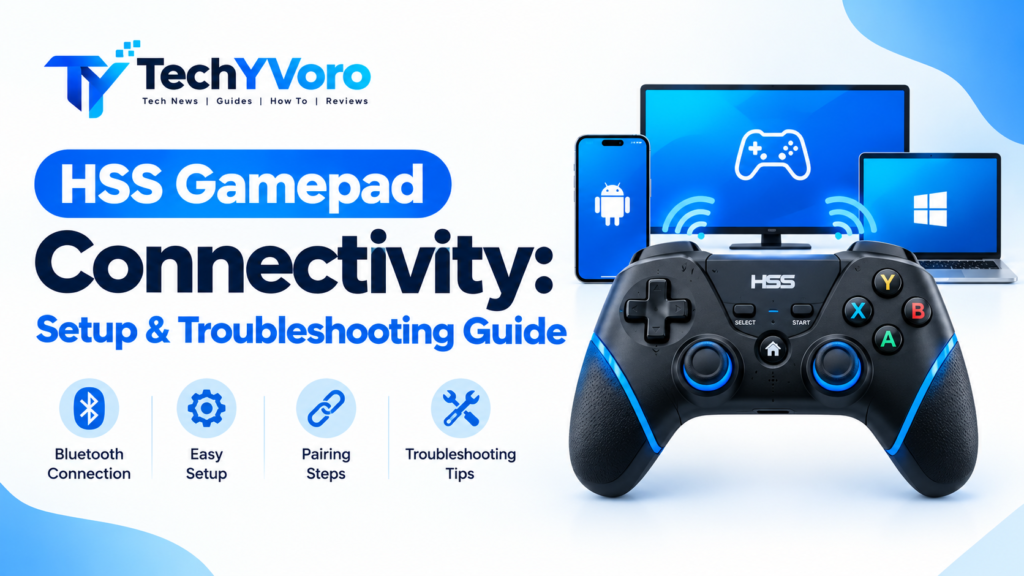
Connecting a game controller should be straightforward, but problems can occur when a controller does not enter pairing mode, a computer fails to recognize it, or a game does not respond to button presses. If you are looking for an HSS gamepad connectivity guide, the first step is to identify which connection methods your particular controller supports.
The name “HSS Gamepad” alone is not enough to confirm a specific model, its wireless technology, or its compatibility with every device. Therefore, the instructions below distinguish general controller setup procedures from features that must be verified in the controller’s manual.
This guide explains how to prepare your controller, connect a compatible gamepad to Windows, Android, or Apple devices, test its input, and troubleshoot common connection problems.
Quick Answer: How Do You Connect an HSS Gamepad?
To connect an HSS Gamepad, first check its model number and determine whether it supports Bluetooth, a wired USB connection, or a dedicated wireless receiver. Charge the controller if necessary, follow its documented instructions to activate the appropriate connection mode, and then select it in your device’s Bluetooth settings or connect it using the supported cable or receiver.
After connecting, test the buttons and analog sticks in your operating system or a compatible game. If the controller pairs successfully but does not respond during gameplay, check whether the game supports that controller and its input mode.
Important: Do not assume that every HSS controller supports all three connection methods. The correct procedure depends on the actual hardware.
What Is HSS Gamepad Connectivity?
HSS gamepad connectivity refers to the process of connecting an HSS-branded or HSS-identified game controller to a compatible device so that it can send gameplay inputs.
A successful connection generally involves three stages:
- Connection: The controller establishes a link with the computer, phone, or other supported device.
- Recognition: The operating system identifies the controller as an input device.
- Game compatibility: The game or application recognizes the controller and responds to its buttons and sticks.
These stages are related but not identical. A controller can appear in Bluetooth settings without being supported by a particular game.
Before troubleshooting, identify which stage is failing. Doing so helps you avoid unnecessary driver installations, repeated pairing attempts, or unrelated software changes.
Check Your HSS Gamepad Before Connecting
Before changing any settings, perform a few basic checks.
- Identify the model. Look for the model number on the controller, packaging, product label, or instruction manual.
- Check the supported connection methods. Confirm whether the manual specifies Bluetooth, USB data connectivity, a dedicated wireless receiver, or another method.
- Check the power supply. If the controller has a rechargeable battery, charge it according to the manufacturer’s instructions.
- Inspect the cable and receiver. Use the supplied accessories where available. A charging-only USB cable may not transfer controller data.
- Check device compatibility. Confirm that the controller supports the intended operating system and connection method.
- Read the pairing instructions. Some controllers require a specific button combination or mode selection. Do not guess the combination.
These checks establish a reliable starting point and reduce the risk of following instructions intended for a different controller.
HSS Gamepad Connection Methods Explained
Different game controllers use different connection technologies. The following comparison explains the common options, but it does not confirm that every option is available on an HSS model.
| Connection method | How it works | What to verify |
|---|---|---|
| Bluetooth | Connects wirelessly to a compatible device | Bluetooth support and the correct pairing procedure |
| Wired USB | Uses a cable to transfer supported controller input | Data-capable cable, compatible port and controller support |
| 2.4 GHz wireless receiver | Uses a dedicated USB receiver for a wireless connection | The correct receiver and supported operating mode |
Bluetooth connection
Bluetooth can provide a convenient wireless connection when both the controller and the target device support a compatible Bluetooth profile.
The controller must usually be switched into a discoverable pairing mode before it appears in the device’s Bluetooth list. The button combination varies by model, so follow the manufacturer’s instructions rather than assuming that holding a particular button will work.
Bluetooth may be suitable for a compatible computer, phone, tablet, or other supported device. However, successful pairing does not guarantee that every game will recognize the controller.
Wired USB connection
A wired connection can simplify setup because it avoids the need for wireless pairing.
Connect the controller using a compatible data cable and a suitable USB port. If the controller supports USB input, the operating system may recognize it automatically.
If the device only charges, check the cable, USB port, controller mode, and manufacturer’s documentation before assuming that a driver is missing.
2.4 GHz wireless receiver
Some wireless game controllers use a dedicated USB receiver rather than standard Bluetooth.
If your controller includes such a receiver, check the manual for the correct connection procedure. Insert the receiver into a compatible port and activate the controller’s specified wireless mode if required.
Do not assume that an ordinary Bluetooth adapter can replace a proprietary receiver. The two technologies are not interchangeable in every controller design.
How to Connect an HSS Gamepad to a Windows PC
Windows supports a wide range of input devices, but the controller must use a connection method and input protocol that the hardware and operating system support.
Method 1: Bluetooth connection
Use these steps if your HSS Gamepad has confirmed Bluetooth support.
- Charge the controller if necessary and turn it on.
- Activate Bluetooth pairing mode using the instructions for your model.
- On Windows 11, open Settings → Bluetooth & devices.
- Make sure Bluetooth is enabled.
- Select the option to add a device, choose Bluetooth, and look for the controller in the available devices list.
- Select the controller and follow any on-screen instructions.
- Once connected, test its input in a compatible game or controller-testing utility.
Windows may reconnect to a previously paired device when Bluetooth is enabled and the device is available. If the controller does not appear, make sure it is actually discoverable and not already connected to another device.
For Microsoft’s general instructions, see the official Windows Bluetooth pairing guide.
Method 2: USB connection
If the controller supports wired USB input:
- Connect it to the computer using a compatible data cable.
- Wait for Windows to detect the device.
- Check whether the controller appears in the operating system’s available input devices.
- Open a compatible game or controller-testing tool and check the buttons and sticks.
- If it is not detected, try another suitable USB port and a known data-capable cable.
Windows often detects and configures common hardware automatically. If it does not, consult the controller’s official documentation before installing any additional software. Microsoft’s hardware setup guidance explains the general process.
Method 3: Dedicated wireless receiver
Use this method only if the controller is supplied with, or explicitly supports, a compatible receiver.
- Insert the receiver into a suitable USB port.
- Turn on the controller.
- Follow the documented receiver-pairing or wireless-mode procedure.
- Allow Windows to recognize the device.
- Test the controller in a compatible game.
If the receiver is missing, do not assume that a generic replacement will work. Check the manufacturer’s specifications for compatibility.
How to Connect an HSS Gamepad to Android
An Android phone or tablet may support a compatible Bluetooth controller, but compatibility depends on the controller, device, Android version, and game.
If your model supports Bluetooth, follow these general steps:
- Turn on the controller and activate its documented pairing mode.
- Open Settings on your Android device.
- Open Bluetooth or Connected devices, depending on the device’s software.
- Enable Bluetooth if it is disabled.
- Select the option to pair a new device.
- Choose the controller if it appears in the available devices list.
- Follow any prompts, then open a compatible game to test its input.
If the controller connects but the game does not respond, check the game’s controller support and input settings. Some mobile games require a supported controller or provide different controls for touchscreens and external devices.
If your controller uses a proprietary receiver or wired connection, verify the necessary adapter, USB compatibility, and manufacturer instructions before trying that method.
Can You Connect an HSS Gamepad to an iPhone or iPad?
You can connect compatible game controllers to supported Apple devices, but the exact HSS model must be checked before you can confirm compatibility.
Apple’s official guidance explains how to pair supported wireless controllers and notes that some compatible controllers can also connect through a USB cable that supports data and charging.
If your controller is confirmed to support a compatible Bluetooth connection:
- Put the controller into pairing mode according to its manual.
- Open Settings → Bluetooth on your iPhone or iPad.
- Turn on Bluetooth if necessary.
- Select the controller when it appears in the nearby devices list.
- Open a game that supports controllers and test the inputs.
If it does not appear, verify its compatibility and pairing procedure before repeating the process.
Read Apple’s official wireless game controller connection guide for further information. Do not assume that an HSS controller will work with an iPhone or iPad simply because another Bluetooth controller does.
How to Test Whether the Gamepad Is Working
After connecting the controller, determine whether the operating system recognizes it and whether the intended game supports it.
On Windows
Check whether the controller appears among the available input devices. If a compatible controller-testing utility is available, use it to inspect button presses and analog stick movement.
If the operating system recognizes the controller and the inputs register correctly, the physical connection is probably working. If a particular game still ignores the controller, investigate the game’s controller settings and compatibility.
On Android
Open a game that explicitly supports external controllers. Test movement, action buttons, and other available controls.
A successful Bluetooth connection alone does not prove that the game supports the controller’s input protocol.
On iPhone or iPad
Try a compatible game or an available controller configuration screen. Apple notes that support for specific buttons and features varies by controller and application.
If only certain buttons work, check the game’s control settings and the controller’s supported features before assuming the device is faulty.
Troubleshooting Common HSS Gamepad Connectivity Problems
If your controller is not working, identify the symptom first. Then try the relevant checks in order.
| Problem | Possible cause | What to try |
|---|---|---|
| Controller does not appear in Bluetooth settings | Not in pairing mode, low battery, or unsupported Bluetooth | Check the manual, charge the controller, and verify compatibility |
| Pairing fails | Existing pairing conflict or incomplete pairing procedure | Remove an obsolete pairing if necessary and retry using the documented procedure |
| Controller connects but does not work in a game | Game incompatibility or incorrect input configuration | Test in another compatible game and inspect its controller settings |
| Controller disconnects repeatedly | Low power, interference, range, or a connection fault | Charge it, move closer, reduce interference, and retry |
| USB controller is not detected | Charging-only cable, faulty port, or unsupported wired mode | Use a data-capable cable, try another port, and verify USB support |
| Buttons behave incorrectly | Game mapping or controller input-mode issue | Check the game’s controls and the model’s documented configuration options |
1. HSS Gamepad is not connecting
Start with the simplest checks.
- Confirm that the controller is charged or has a working power supply.
- Make sure you are using a connection method supported by the model.
- Follow the correct pairing procedure.
- Keep the controller close to the device during wireless setup.
- Disconnect it from another device if it is already paired or connected there.
- Restart Bluetooth on the target device and retry the pairing process.
If the controller still does not appear, check whether the model is compatible with your operating system. Repeated pairing attempts will not resolve a connection method the hardware does not support.
2. The controller keeps disconnecting
Unexpected disconnections can result from a low battery, wireless interference, excessive distance, a faulty cable, or a problem with the receiver.
For wireless connections, charge the controller and test it closer to the host device. If possible, reduce nearby sources of interference and disconnect unnecessary wireless accessories temporarily.
For wired connections, inspect the cable and connector for damage. If the connection changes when the cable moves, stop using the damaged cable.
3. The controller is connected but does not work
This problem requires separating connection status from input recognition.
First, check whether the operating system identifies the controller as an input device. Next, test it in another compatible application.
If the inputs work elsewhere, investigate the original game’s controller support, configuration settings, and control mapping. If the operating system does not recognize any input, revisit the connection method, device compatibility, and manufacturer’s instructions.
Avoid installing unofficial drivers simply because a game does not respond.
4. Buttons are mapped incorrectly
Incorrect button mapping may be caused by the game’s control configuration, the controller’s supported input mode, or application-specific compatibility.
Check the game’s control settings and restore the default mapping if necessary. If the controller manual documents different input modes, follow the model-specific instructions to select a supported mode.
Do not assume that every HSS controller supports XInput, DirectInput, or a mode-switching shortcut. These details must be verified for the actual hardware.
5. USB connection is not recognized
A controller may charge through USB without transferring input data.
Try the following:
- Check that the cable supports data transfer.
- Connect directly to another suitable USB port.
- Avoid an unpowered hub while troubleshooting.
- Check whether the controller supports wired input in its current mode.
- Consult the manufacturer’s documentation if the device remains undetected.
If the controller is still not recognized, determine whether the problem follows the cable, port, controller, or computer before changing drivers.
6. Bluetooth pairing keeps failing
If your controller supports Bluetooth but pairing repeatedly fails, remove an outdated pairing entry if one exists, switch the controller off and on, and follow its documented pairing sequence again.
Make sure it is not connected to another device and remains discoverable while you search for it.
On Apple devices, you can also use the device’s Bluetooth settings to forget a controller and pair it again. See Apple’s wireless controller troubleshooting instructions.
7. Should you reset the HSS Gamepad?
A reset may help if a controller has a documented reset procedure, but the procedure varies between models.
Check the instruction manual or manufacturer’s support material before attempting a reset. Do not insert pins into unidentified holes, hold random button combinations, or assume that every controller has the same reset sequence.
If the manual offers a reset procedure, follow it exactly and then repeat the normal connection steps.
Best Practices for Reliable Gamepad Connectivity
A few simple habits can reduce connection problems:
- Keep the controller charged according to its manufacturer’s recommendations.
- Use compatible cables and the correct wireless receiver.
- Store the controller and accessories safely to avoid physical damage.
- Keep the controller’s firmware and host-device software updated when official updates are available.
- Avoid unnecessary third-party driver utilities.
- Check game-specific controller support before changing system settings.
- Keep the instruction manual or model number available for future troubleshooting.
If you regularly play on a PC, also review the relevant game settings before changing operating-system configurations. If you are exploring other gaming technology topics, the TechyVoro Software category may provide useful related reading.
Frequently Asked Questions
1. How do I connect an HSS Gamepad?
Identify the model and confirm its supported connection method. Then follow the documented Bluetooth, USB, or receiver setup procedure and test the controller in a compatible game.
2. Does the HSS Gamepad support Bluetooth?
Bluetooth support cannot be confirmed from the name alone. Check the model number, product specifications, or instruction manual to establish whether your particular controller supports Bluetooth.
3. Can I use an HSS Gamepad on a Windows PC?
That depends on the controller’s hardware, input protocol, and supported connection method. Check its specifications, connect it using a documented method, and verify that Windows recognizes its inputs.
4. Can I connect an HSS Gamepad to Android?
A compatible model may work with Android through a supported wireless or wired connection. Verify the controller’s specifications and the game’s external-controller support before relying on it.
5. Does the HSS Gamepad work with an iPhone?
Compatibility is model-specific. Apple supports certain compatible wireless and wired game controllers, but that does not establish support for every HSS controller.
6. Why is my HSS Gamepad not connecting?
Common possibilities include an incorrect pairing procedure, insufficient power, unsupported connectivity, an existing connection to another device, or a problem with the cable or receiver. Start by confirming the model and connection method.
7. Why does the controller connect but not work in a game?
The operating system may recognize the controller while the game does not support its input protocol or configuration. Test it in another compatible game and check the original game’s controller settings.
8. How can I reset my HSS Gamepad?
Use the reset procedure specified in the controller’s manual. There is no verified universal reset combination for every device identified as an HSS Gamepad.
Final Recommendations
Reliable HSS gamepad connectivity starts with identifying the exact controller and confirming which connection methods it supports. Follow the appropriate setup instructions, verify that the operating system recognizes the controller, and test it in a compatible game.
If connection problems continue, troubleshoot the specific symptom rather than installing random drivers or trying undocumented reset combinations. Confirmed model information is the most useful starting point for accurate pairing, compatibility, and repair guidance.
For more technology and gaming-related coverage, visit TechyVoro and explore the relevant guides available on the site.